How to Set Up Your Discord Store with Cartcord
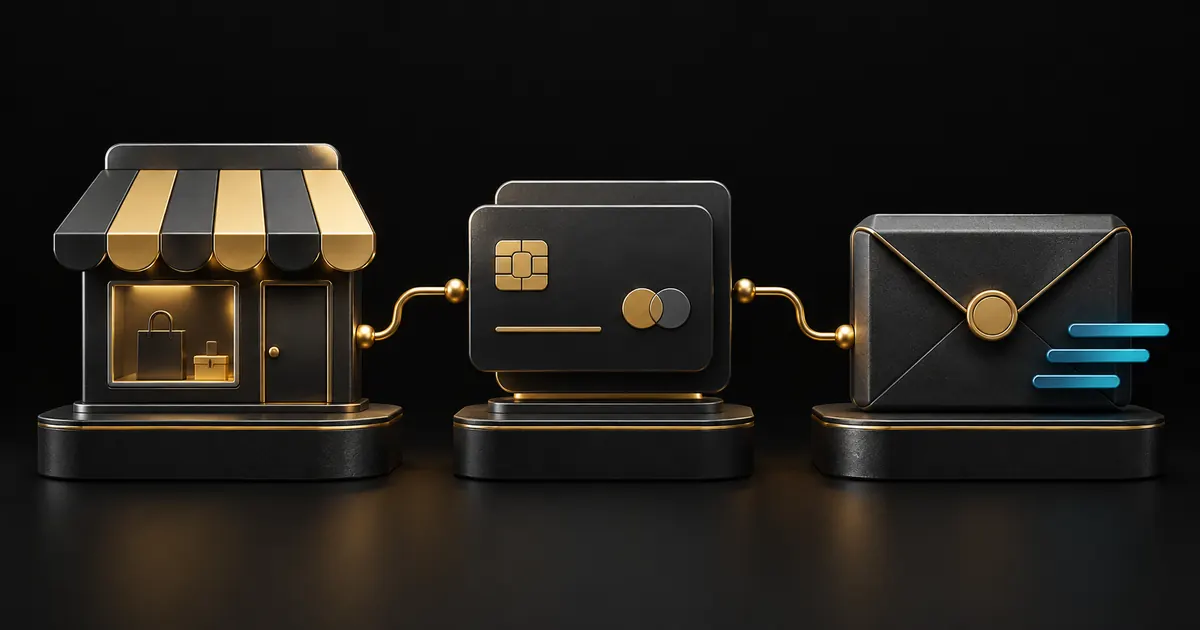
By Cartcord Team · Tutorial · 2026-06-24
Selling digital products on Discord used to mean juggling DMs, manual invoices, and a spreadsheet. Cartcord replaces all of that with a clean, automated storefront that lives right inside your server.
Start by inviting the Cartcord bot to your server and opening your dashboard. The bot automatically claims the servers you own, so you can select an authorized store after account and server access have loaded. From the dashboard you can name your store, pick an accent color, and choose the channel where new products are announced.
Next, add your first product. Give it a title, a price, and pick a delivery type: a file download, a link, or an automatic Discord role. Cartcord attempts the selected delivery after verified payment and records failures or held work for follow-up.
Finally, connect your PayPal account so payments land directly in your wallet — Cartcord never holds your money. Run the /store command in your server, and your customers can browse and buy without ever leaving Discord.
That is the entire flow: invite, configure, add a product, connect PayPal. Most sellers are live in under ten minutes.
Verify and attach payments to the selected store
The store owner connects matching Live PayPal credentials in Manage store → Settings, verifies them and explicitly attaches the account to this store. Repeat attachment for each owned store. Production has no Sandbox toggle. Cartcord takes 0% sales commission; PayPal processing fees, holds and payment-method availability still apply.
Recover an existing purchase
Buyers sign in with the original Discord account at cartcord.com/purchases, find the order and choose View delivery. This is private purchase recovery, including when DMs were blocked. Payment and delivery states are separate. New recovery/staff bot commands are rolling out, so use the web route if a command is not available.
Read more Cartcord articles