Why bloated bot stacks break server security and slow onboarding
Open any public Discord bot list (`discord bots list`) and it is tempting to invite fifteen overlapping bots on day one—two welcome bots, three moderation bots, a reaction-role utility, a giveaway bot and a makeshift payment relay. Within weeks, admins battle duplicate automod warnings, broken DM notifications, and terrifying 'Administrator' permissions handed out blindly to five unmaintained utilities.
The healthiest Discord servers assign every operational domain to one battle-tested specialist bot following least-privilege principles: one moderation engine, one ticket/application flow where needed, and one dedicated commerce bot (`Cartcord`) so payments and buyer delivery stay completely isolated from chat moderators.
Core moderation & engagement stack: Carl-bot, Dyno and Appy
For automated moderation (`discord moderation bot`) and reaction-role housekeeping, two names consistently top `best discord bots` shortlists: **Dyno** (`dyno discord bots`) shines when moderators want responsive web-dashboard logs, timed mutes, word/link filters and configurable anti-spam rules; **Carl-bot** (`carl bot discord`) excels at granular multi-role reaction panels, custom tag embeds, starboard curation and strict permission logs.
If your gaming clan, creator agency or study community screens applicants before unlocking channels or moderator roles, **Appy** (`appy discord bot`) automates structured multi-question application forms cleanly in DMs or channels, routing answers straight to a private staff voting thread without cluttering general chat.
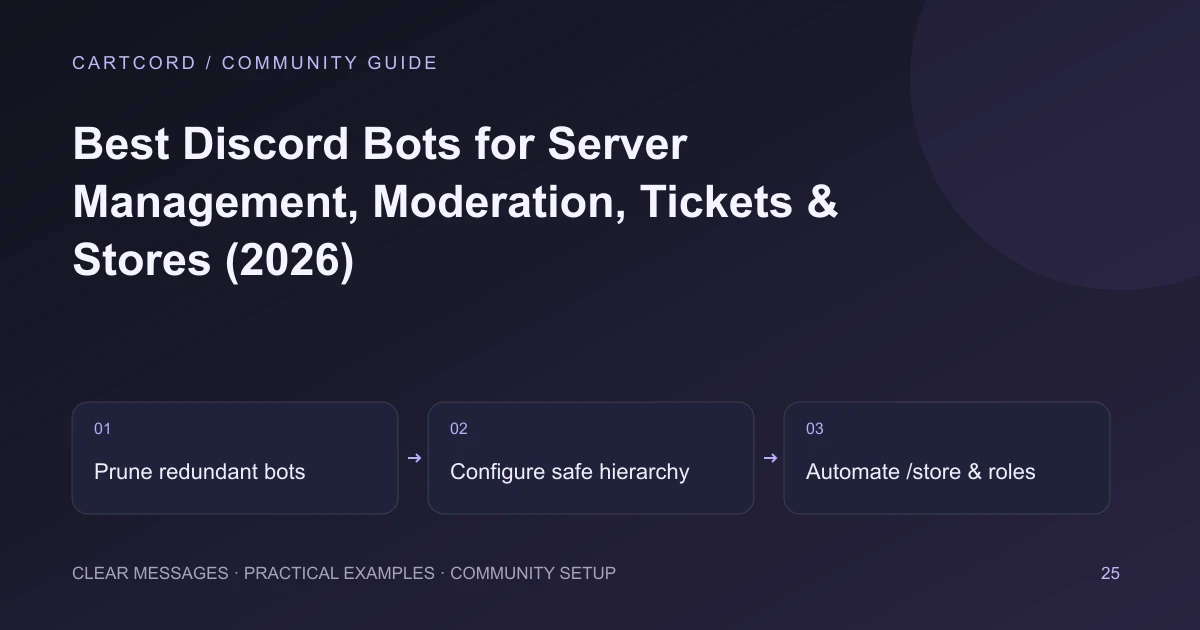
- 01
Prune redundant bots
- 02
Configure safe hierarchy
- 03
Automate /store & roles
Before promoting any digital storefront publicly, verify your full workflow end to end: test Live PayPal checkout using an ordinary non-staff Discord account, check Manage Roles hierarchy above every purchasable role, confirm single-use license key stock or protected download links, and keep delivery recovery instructions clear at /purchases.
Cartcord charges 0% sales commission on flat plans ($0 Free, $9.99 Starter, $29.99 Basic, $59.99 Pro, $129.99 Enterprise), while PayPal processing fees and applicable platform eligibility rules—such as Tebex for FiveM and RedM server monetization—remain the merchant's responsibility.
Technical fulfillment specs: Discord slash commands /store, /products, /buy, /purchases and /help; Discord OAuth2 web authentication; Live PayPal direct payouts; protected Basic+ downloads, single-use CSV license keys with optional Ed25519 checks, Manage Roles grants and Enterprise Fraud Guard webhooks.
Support workflow vs automated checkout: Ticket Tool meets /store
For open support triage, **Ticket Tool** (`ticket tool discord bots`) creates clean private channels when members ask custom troubleshooting questions or report bugs. Yet thousands of store owners misuse Ticket Tool as an improvised cash register—forcing buyers to open a ticket, paste PayPal screenshots, wait three hours for staff to verify transactions, and beg an admin for a manual role grant.
Replacing manual payment tickets with native commerce (`Cartcord`) turns support upside down. Buyers run `/store` or `/buy` straight inside chat—or pay via your public web store—complete verified Live PayPal checkout, and let Cartcord assign the configured buyer role (`Manage Roles`), deliver protected Basic+ Vault downloads or unique CSV license keys via DM, and permanently record receipts inside `/purchases` while Ticket Tool handles genuinely rare edge cases.
Channel layout & permission blueprint for a high-trust Discord server
Even the best Discord bots fail inside chaotic channel trees. Group your server cleanly into four clear zones: **1) Welcome & Rules** (`#start-here`, `#rules`, `#announcements` locked read-only for members); **2) Storefront & Recovery** (`#shop` pinned with `/store`, `#reviews`, `#how-purchases-work` linking `/purchases`); **3) Community & Support** (`#general`, `#help-tickets` powered by Ticket Tool); and **4) Buyer-Only Rooms** (`#vip-downloads`, `#changelog`, gated exclusively via paid roles sitting strictly **below** Cartcord in Server Settings → Roles).
Keep admin permission hygiene strict: grant Cartcord `Manage Roles`, `View Channels`, `Send Messages`, `Embed Links` and `Use Application Commands` inside commerce rooms rather than lazy server-wide Administrator access.
Discord server search, discovery and role hierarchy best practices
Once your bot stack works cleanly, growth depends on discoverability (`discord server search`, `search for a discord server`, `find discord server`) across Google, Discord Discovery (for eligible communities) and clean landing pages. Instead of burying invite links only in YouTube descriptions, publish an indexable storefront & documentation hub that welcomes organic search visitors cleanly before onboarding them into `#start-here`.
Before running your first paid role test, audit Discord Server Settings → Roles carefully: any role Cartcord grants automatically MUST sit **below** the Cartcord bot's highest managed role. Discord puts newly created roles at the top by default—so whenever you launch a brand-new `VIP 2` role later, drag it beneath Cartcord before publishing the SKU.
Discord Server Subscriptions vs Cartcord Role Bot + Direct PayPal
Server owners inside eligible regions often compare official **Discord Server Subscriptions** against a dedicated `discord role bot` like Cartcord. Native Discord Server Subscriptions streamline recurring native app billing in supported jurisdictions (`10%` platform share under standard Discord monetization terms plus app store fees on mobile purchases) for recurring monthly memberships, whereas Cartcord lets sellers worldwide keep `0%` platform sales commission on one-time Discord VIP roles, downloadable digital bundles, private access URLs and license key pools via their own Live PayPal account.
Evaluating a Discord alternative or hybrid web + community strategy
Even creators evaluating a `discord alternative` (such as Telegram channels, Guilded/Matrix or Discourse forums) for chat moderation rarely want their commercial library trapped inside one proprietary chat client. With Cartcord, every product catalog, customer purchase library (`/purchases`) and hosted Pro Store Docs lives on standard indexable web URLs alongside your Discord server commands—keeping community sales portable and resilient as platforms evolve.
Official sources
- Discord Support: Role Management 101 & Bot Hierarchy
- Discord Server Subscriptions Creator Terms & Availability
- Discord Developer Documentation: Permissions & Application Scopes
Sources checked on 2026-11-28. Review current provider terms before making a decision.
- Review exact Discord bot permissions checklistRelated guide
- Explore Cartcord /store, /buy and /purchases commandsRelated guide
- Set up automated buyer Discord role deliveryRelated guide
- Fix Discord roles not assigning after checkoutRelated guide
Frequently asked questions
Should a store bot have Administrator permission on Discord?
No. Follow least-privilege security: grant Cartcord Manage Roles (placed strictly above buyer roles it assigns) plus standard slash command/embed permissions so commerce works reliably without unnecessary server-wide admin risk.
Can I use Dyno or Carl-bot alongside Cartcord on the same server?
Yes. Dyno and Carl-bot handle automod, welcome messages and free self-assign reaction roles cleanly, while Cartcord runs commercial /store checkouts, paid role delivery, CSV serial keys and protected files independently.
How do buyers recover purchases if DMs are blocked?
Buyers never need to open a manual Ticket Tool claim just for closed DMs. Signing into your storefront's /purchases view (or using /purchases in Discord) authenticates via Discord OAuth2 and shows every completed order item immediately.
Why won't my Discord role bot assign a buyer role after payment?
Check Server Settings -> Roles hierarchy first: Discord blocks any bot from assigning a role positioned at or above the bot's own highest role. Drag Cartcord's role strictly above the paid customer role and click Delivery Retry inside Orders.